
Claude & Xero: Set-Up Guide
Connecting Claude to your Xero gives you more power with your Xero data. This guide shows how to set it up, and how to use it to stay on top of accounts receivable.
Claude can connect to Xero in a few clicks and answer accounts receivable questions that Xero's own AI assistant, JAX, can't.
- Xero AI (JAX) handles basic questions, such as which invoices are late or your total accounts receivable.
- Claude can analyse your Xero data: who your slowest payer is, how long buyers take to pay, and full accounts receivable reports.
- To connect: in Claude, browse connectors, search for "Xero" and select "Connect to Claude".
Purpose of this guide
This guide highlights what Claude can do compared with Xero AI (JAX), and how Claude can help with accounts receivable so you're always up to date.
Comparing the two, Claude outperforms Xero AI on two fronts:
- Generating unique insight
- Handling specific requests
From day-to-day queries to building complex reports, Claude gives you a better AI experience.
Xero AI (JAX)
You're probably already using JAX, Xero's AI chatbot. Within your Xero account, you can ask basic questions and get simple responses. For example:
- What invoices are late?
- Which invoices are more than 30 days late?
- What's my total accounts receivable?
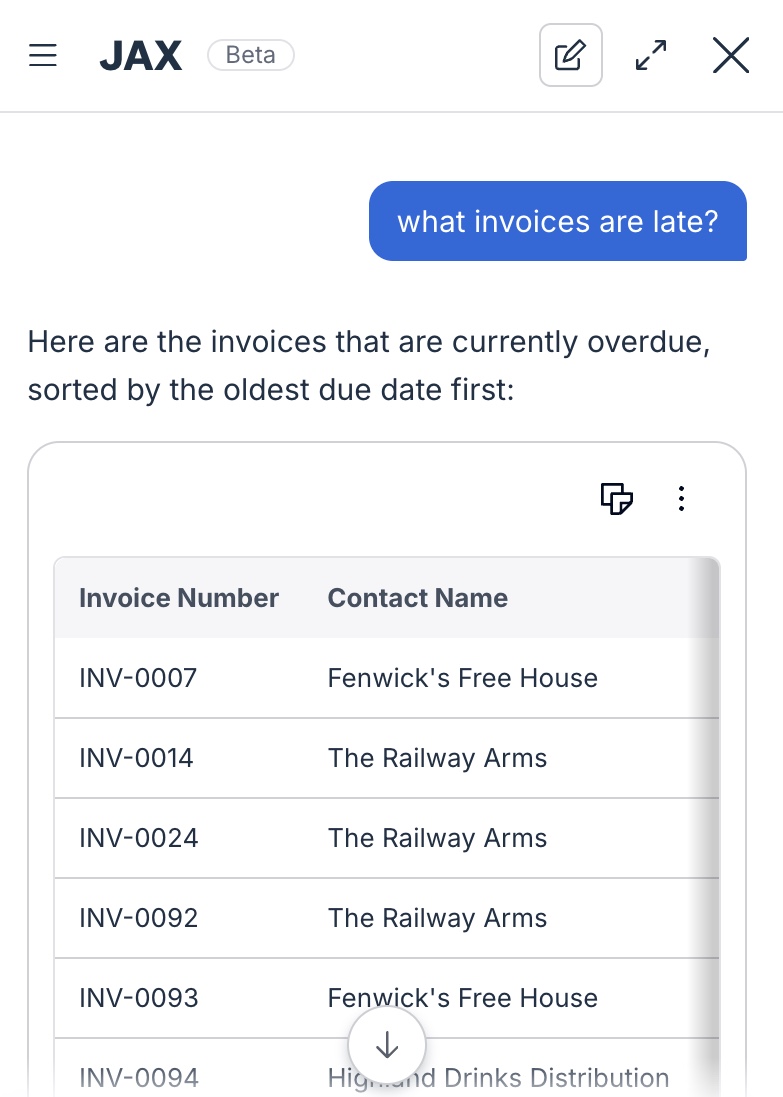
The limitations of Xero AI
When you start asking more detailed questions, Xero AI doesn't have the functionality to respond. One of two things happens:
- the chatbot explains that it can't answer the question; or
- it links you to Xero Analytics, where you can run some specific reports.
Examples of questions Xero AI can't answer:
- Which contact has the highest amount owing?
- What's the average time it takes a contact to pay an invoice?
- Who is the slowest payer?
- Run a report on all late invoices.
How to connect Claude to Xero
In my experience, Claude is the best-performing AI model for business and commercial tasks. Once you're signed in to Claude, it takes seconds to connect your Xero organisation:
1. Browse connectors
In a chat, open the + menu, then Connectors → Add connector → Browse connectors.
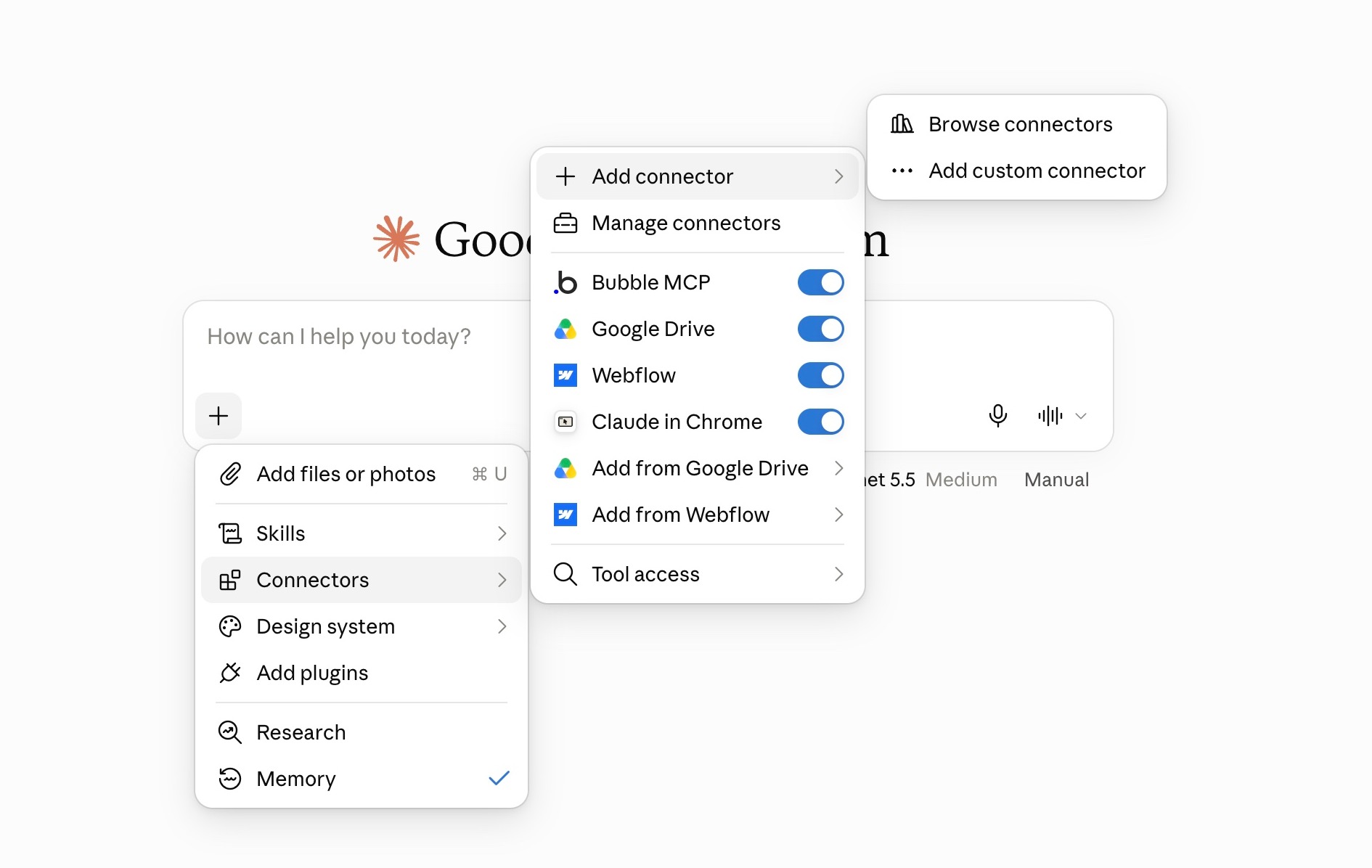
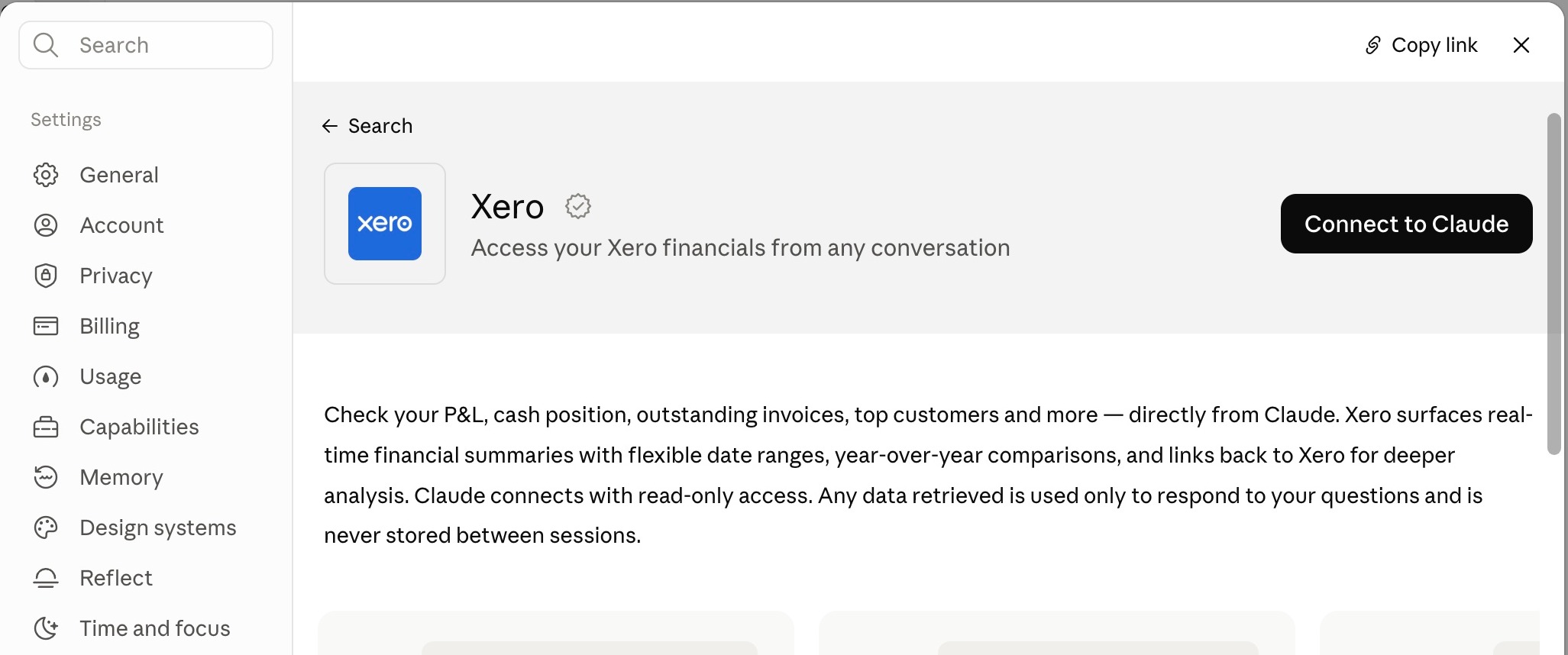
2. Search "Xero" and select "Connect to Claude"
Getting started with your Xero connection
- Step 1: open a new chat. I recommend one of the mid-strength models; at the time of writing that's Sonnet 5.5 or Opus.
- Step 2: tell Claude: "I want to access insight from Xero."
Claude should then return high-level data from your Xero, such as your cash position, aged receivables and top customers by revenue.
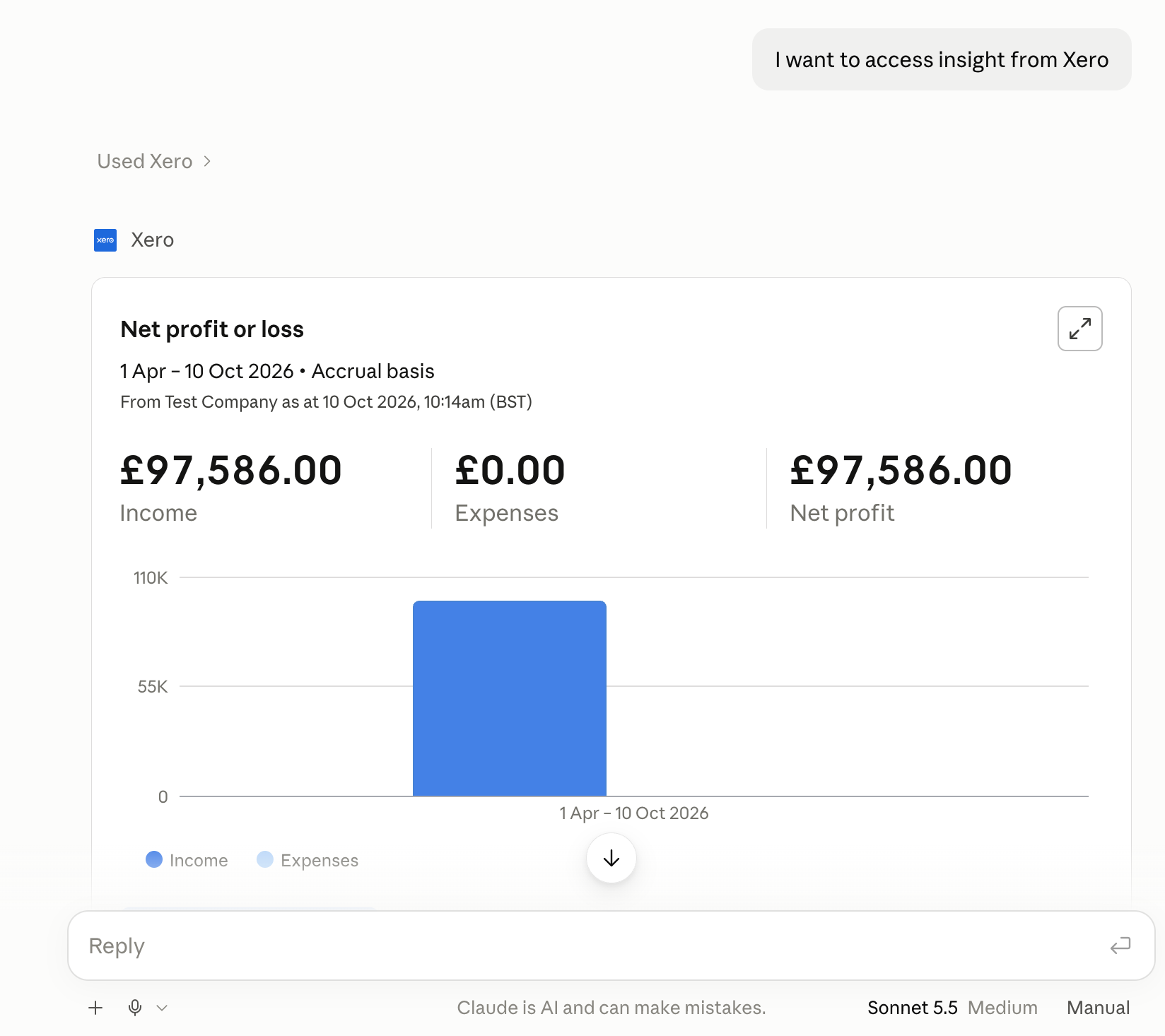
Because Xero built this connector, Xero returns its own data where it can. A response coming directly from Xero has the Xero logo before it, as above. The information Xero returns is mainly infographics that mirror Xero Analytics graphs and visuals.
How to get the best out of Claude
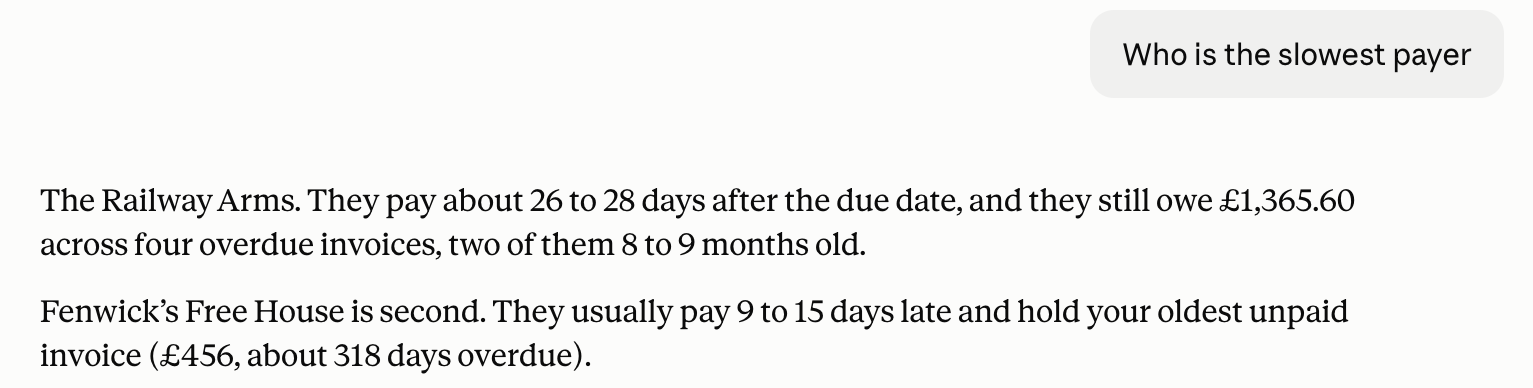
After the Xero infographic, you'll see content generated by Claude. This goes deeper: Claude can answer more specific questions about your accounting data.
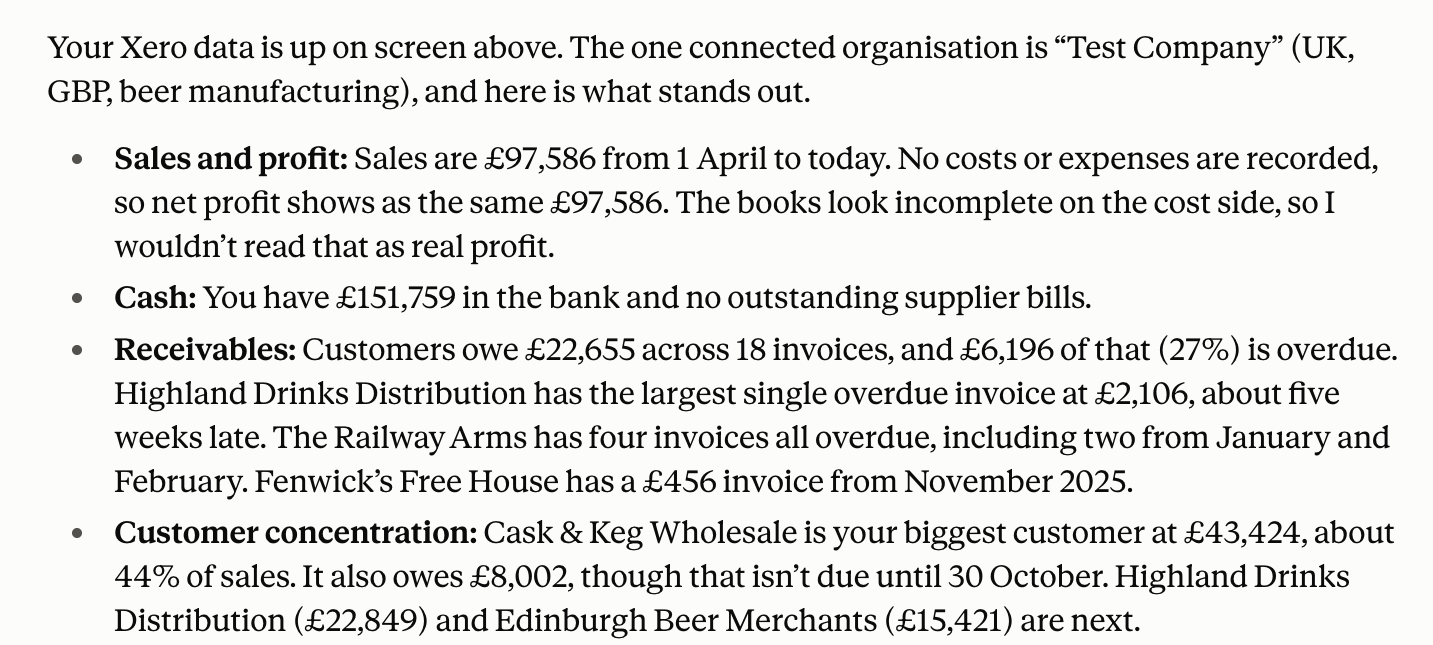
On data: Xero's connector page says Claude connects with read-only access, and that data retrieved is used only to respond to your questions and isn't stored between sessions. I also recommend turning off the setting that allows your data to be used to train AI models.
To get the best out of Claude, ask targeted questions that Xero AI can't answer. Typically these involve some level of analysis, not just simple requests. For example:
"Who is the slowest payer?"
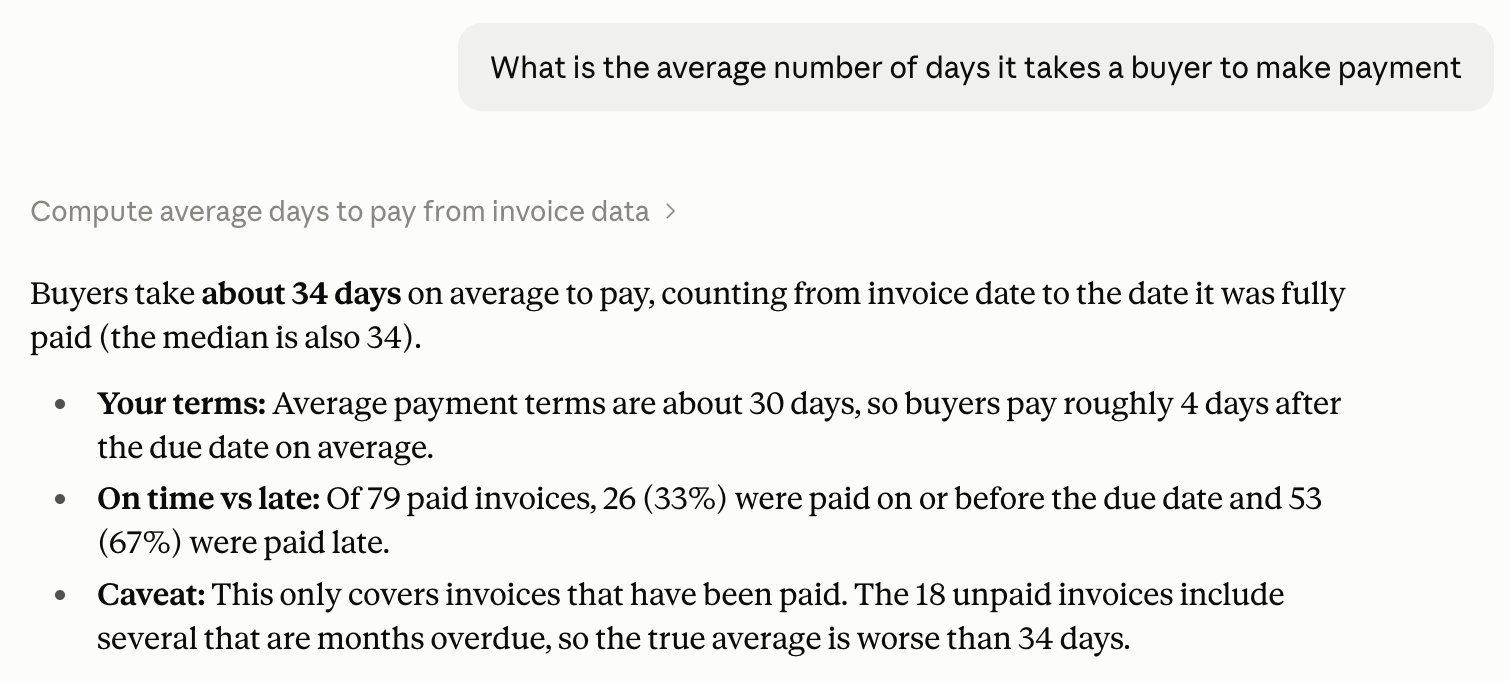
"What is the average number of days it takes a buyer to make payment?"
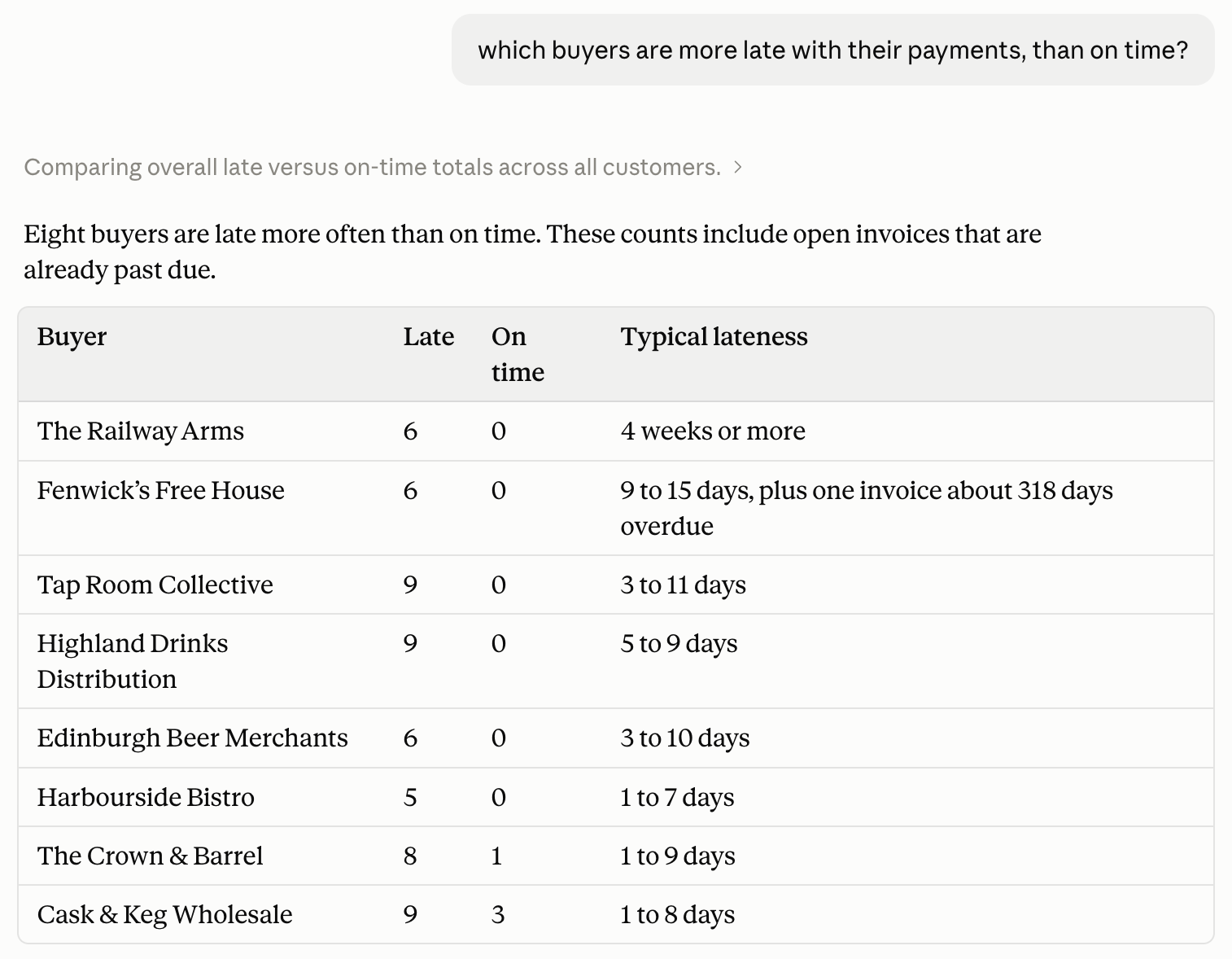
"Which buyers are more often late with their payments than on time?"
Build informative accounts receivable reports
Xero lets you build reports on general business KPIs, mainly derived from your P&L and balance sheet. Claude, by contrast, doesn't have a fixed report format: it returns content in the way that best suits your request.
When you want a report, tell Claude so, and be specific about the format and purpose (for example a PDF, an Excel sheet or a slide deck). These prompts need to be detailed and direct. A lazy prompt such as "report on accounts receivable" is likely to give a convoluted answer.
A good example:
The result? A detailed accounts receivable report, generated in three minutes.
Another good prompt:
Completing other tasks
Neither Claude nor Xero AI can take actions in Xero, such as sending a payment reminder or marking an invoice as paid. But there's still a lot Claude can do to help with accounts receivable. Other example prompts:
- "Draft emails for all contacts that have an invoice more than 30 days late. Explain that a late fee will be applied if not paid by the end of the week."
- "Which invoices have no PO reference or are missing a due date?"
- "Which customers should I move to shorter payment terms?"
- "Draft a polite reminder email for every invoice that's due in the next 7 days and isn't late."
- "Give me a one-page AR summary I can paste into an email to my accountant."
Frequently asked questions
How do I connect Claude to Xero?
In Claude, open the + menu, go to Connectors, then Add connector and Browse connectors. Search for "Xero" and select "Connect to Claude", then sign in to your Xero organisation.
What can Claude do with Xero that Xero AI (JAX) can't?
Claude can analyse your Xero data to answer questions such as who your slowest payer is, the average number of days buyers take to pay, and which buyers pay late more often than on time. It can also build detailed accounts receivable reports as a PDF, spreadsheet or slide deck.
Can Claude make changes in Xero?
No. Neither Claude nor Xero AI can take actions in Xero, such as sending payment reminders or marking invoices as paid. Claude connects with read-only access.
Is my Xero data safe with Claude?
Xero's connector page says Claude connects with read-only access, and that data retrieved is used only to respond to your questions and isn't stored between sessions. You can also turn off the setting that allows your data to be used to train AI models.
What are good prompts for accounts receivable in Claude?
Targeted, analytical prompts work best, such as "Who is the slowest payer?", "Build a collections priority list for this week" or "Give me a one-page AR summary for my accountant". For reports, say what you want covered and the format, such as a PDF slide deck.
Get paid on time, faster
Give every trade buyer a Payment Portal connected to your accounting system, and collect by Direct Debit for 0.50% + 30p.
Get started