
Build an Email Invoice Reminder Workflow with n8n and Xero
Xero lets you set invoice reminders, but there are limitations. This guide shows you how to build your own automated invoice reminder workflow with n8n, step by step.
You can use n8n to send automated payment reminder emails for late Xero invoices, from your own email address and in your own design.
- Why: Xero's built-in reminders use the same message for every customer, only send email, come from a Xero address and are limited to five in a sequence.
- How: connect Xero to n8n, then build a daily workflow that finds invoices 3 days late, looks up each customer's email and the invoice link, and sends a reminder through Gmail.
- No code needed: n8n is built for non-technical users. This guide gives you every setting to copy.
Purpose
This is an introduction to n8n, where you'll learn to create a workflow that sends automated payment reminders.
The hardest part of a new platform is getting started, and this guide makes it easier to learn the ropes. Once you've completed it, you'll have the confidence to build more complex workflows, which is where the magic lies.
Automating workflows with n8n
n8n is a workflow automation platform that lets you combine several third-party tools in one sequence. It's built for non-technical users, and the possibilities are endless, especially for small businesses looking to automate tasks. You can sign up for a 14-day free trial.
Xero invoice reminder limitations
In Xero, you can already turn on a fixed workflow that sends invoice reminders before and after the due date.

However, there are limitations:
- No customisation by customer group: every customer gets the same message.
- Email only: no other channels, such as WhatsApp or SMS.
- Sent from a Xero address: reminders don't come from your own email.
- Maximum of five emails in a sequence.
This guide doesn't cover customer-specific messages or WhatsApp and SMS. I'll cover those in another article.
Steps to build an automated invoice reminder workflow
Building your first n8n workflow may seem hard, but it isn't, and this guide takes you through each step.
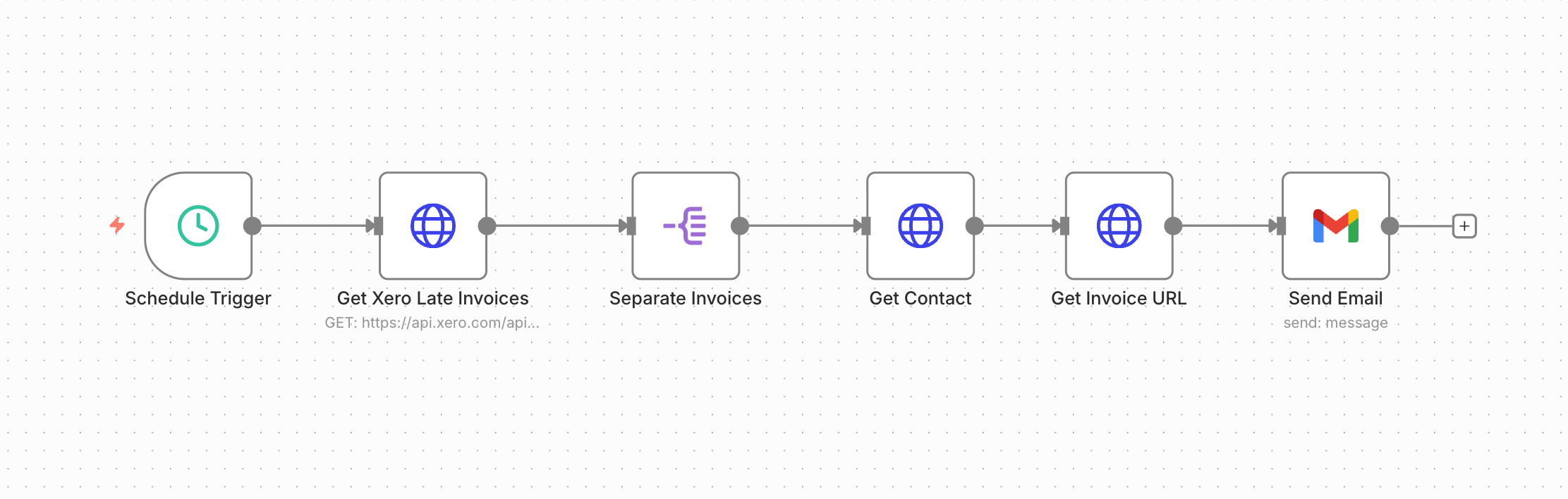
The goal: using Xero and n8n, build a workflow that sends an automated payment reminder when an invoice is 3 days late.
- Sign up to n8n (14-day free trial)
- Create a Xero developer app
- Connect your Xero to n8n
- Create a new workflow in n8n
- First node: get late Xero invoices
- Second node: separate invoices
- Third node: get contact
- Fourth node: get invoice URL
- Design the email format (optional)
- Fifth node: send email (Gmail)
1. Sign up to n8n
Create an account at n8n.io. The 14-day free trial is enough to build and test this workflow.
2. Create a Xero developer app
You're not really building an "app". You're creating credentials that let you connect Xero to n8n.
- Log in to the Xero Developer portal.
- Click New app.
- App name: something generic, such as "n8n – internal connection".
- Integration type: Web app.
- Company or application URL:
https://oauth.n8n.cloud/oauth2/callback - OAuth 2.0 redirect URI:
https://oauth.n8n.cloud/oauth2/callback - Click Create app.
3. Connect your Xero to n8n
Go to your n8n account. In the top right-hand corner you'll see Create workflow. Open the arrow next to it and click Create credential.

Select OAuth2 API.
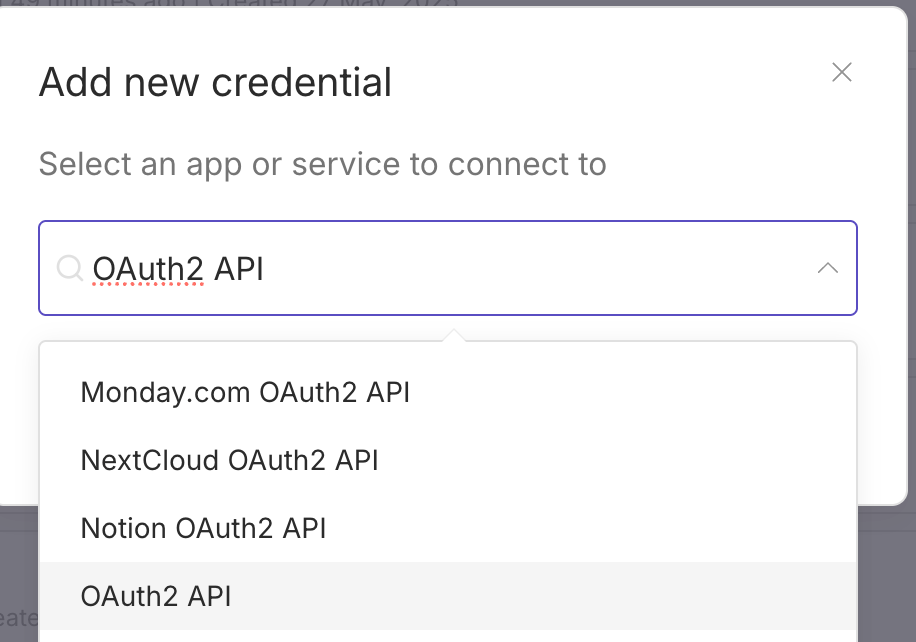
Fill in the credential form:
- Credential name: Xero Credential
- Grant type: Authorization Code
- Authorization URL:
https://login.xero.com/identity/connect/authorize - Access token URL:
https://identity.xero.com/connect/token - Client ID and client secret: go back to the Xero Developer portal, open the app you created, and copy them from the Configuration section.
- Scope:
offline_access accounting.invoices.read accounting.contacts.read
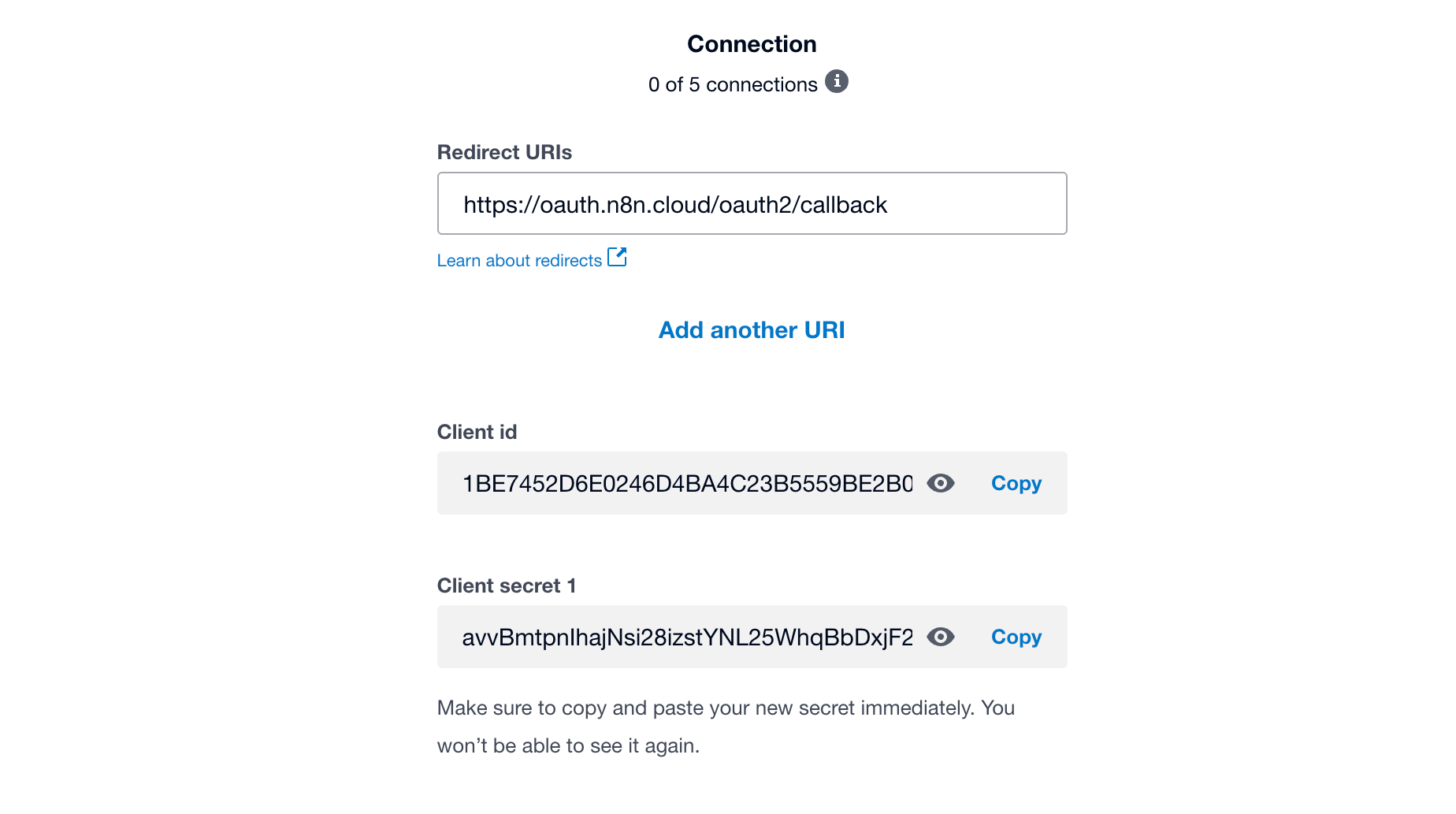
Press Connect my account. You'll be redirected to Xero to choose the organisation you want to connect.
4. Create a new workflow in n8n
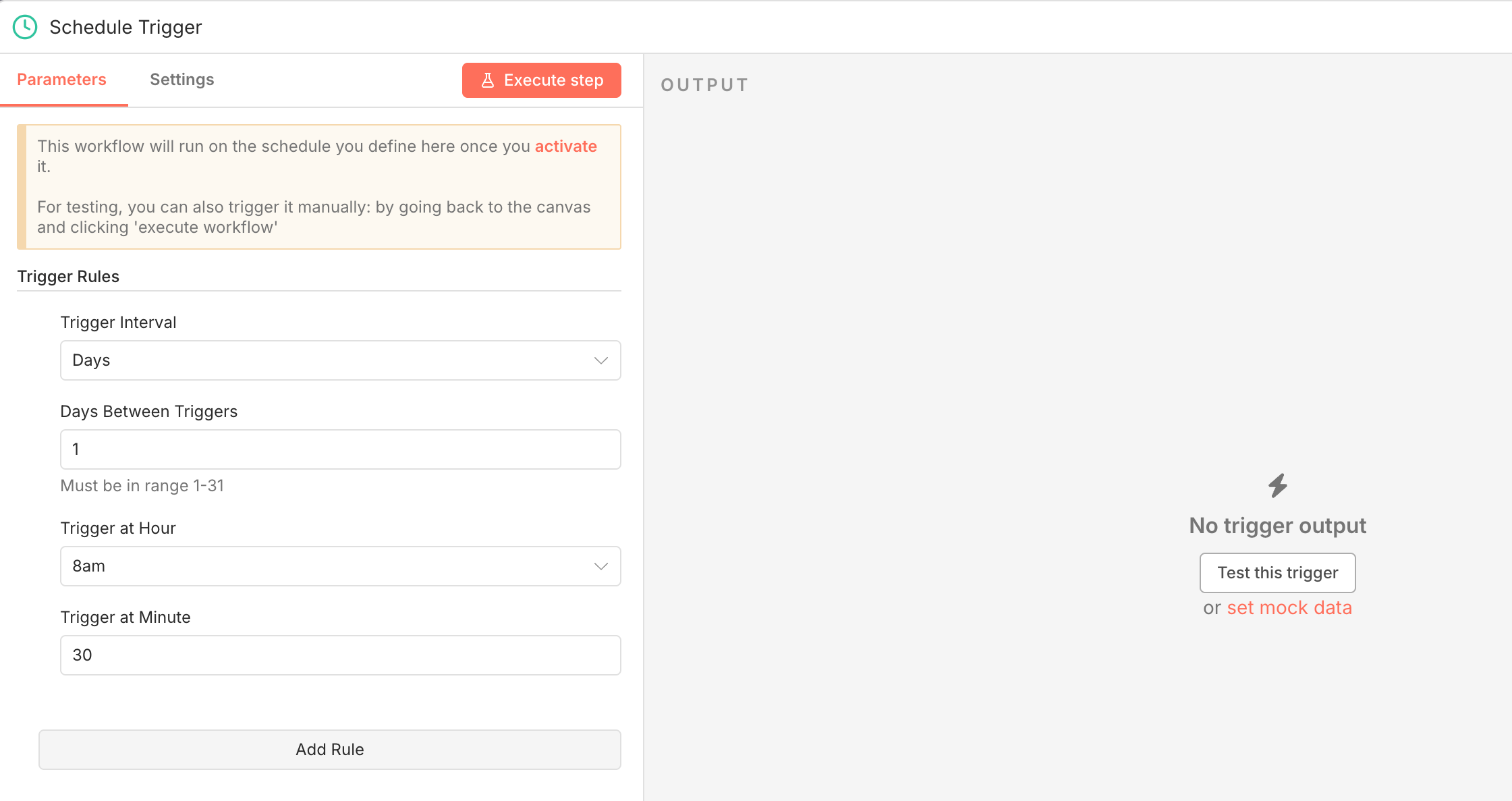
Go to the n8n homepage and select Create workflow. Click Add first step… and select On a schedule.
In this example, the workflow starts at 8:30am each day. It runs requests on your Xero account, then emails each customer with an unpaid invoice that's 3 days past its due date. You'll want emails to go out at a normal hour, not at 2am.
5. First node: get late Xero invoices
This is the first of three requests to your Xero organisation. It returns all invoices that are exactly 3 days late.
Click + to add a node, search for HTTP Request, and name it Get Xero Late Invoices. Then set:
- Method: GET
- URL:
- Authentication: Generic Credential Type
- Generic auth type: OAuth2 API
- OAuth2 API: the Xero credential you created in step 3
- Send query parameters: off
- Send headers: on
- Specify headers: Using Fields Below
- Header name:
Xero-tenant-id - Header value: your Tenant ID. In the Xero Developer portal, open the app from step 2, go to Connection management and copy the Tenant ID.
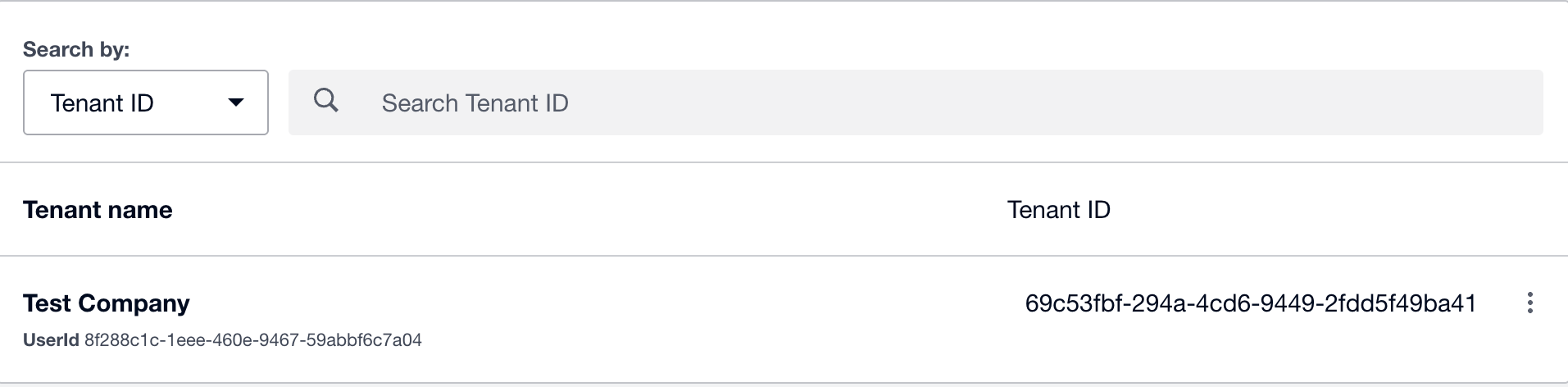
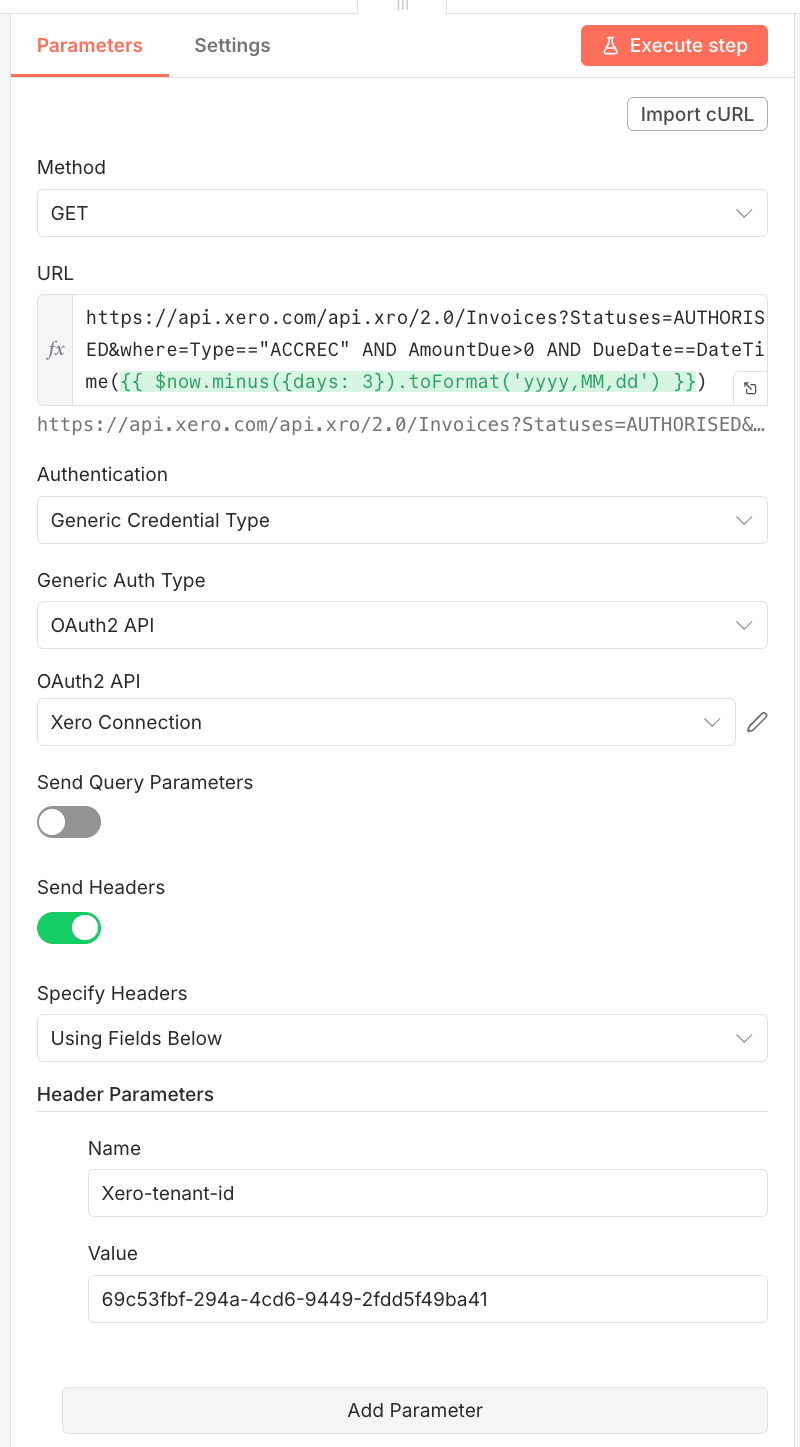
Click Execute step to check it's working before you carry on.
6. Second node: separate invoices
Add a Split Out node and name it Separate Invoices. This splits the results into separate invoices if there's more than one.
- Fields to split out: type
Invoices. Don't include any other fields.
Click Execute step to check it's working.
7. Third node: get contact
This gets the contact for each late invoice, which gives you their email address.
Add another HTTP Request node. All the settings are the same as step 5 except the URL, so you can copy and paste the Get Xero Late Invoices node and change the URL to:
Make sure the URL field is set to Expression, not Fixed. Name the node Get Contact, then click Execute step.
8. Fourth node: get invoice URL
This gets the online link to the late invoice, which goes in the email.
Add another HTTP Request node, copied from step 5, with this URL:
Again, make sure the URL field is set to Expression. Click Execute step to check it's working.
9. Design the email format (optional)
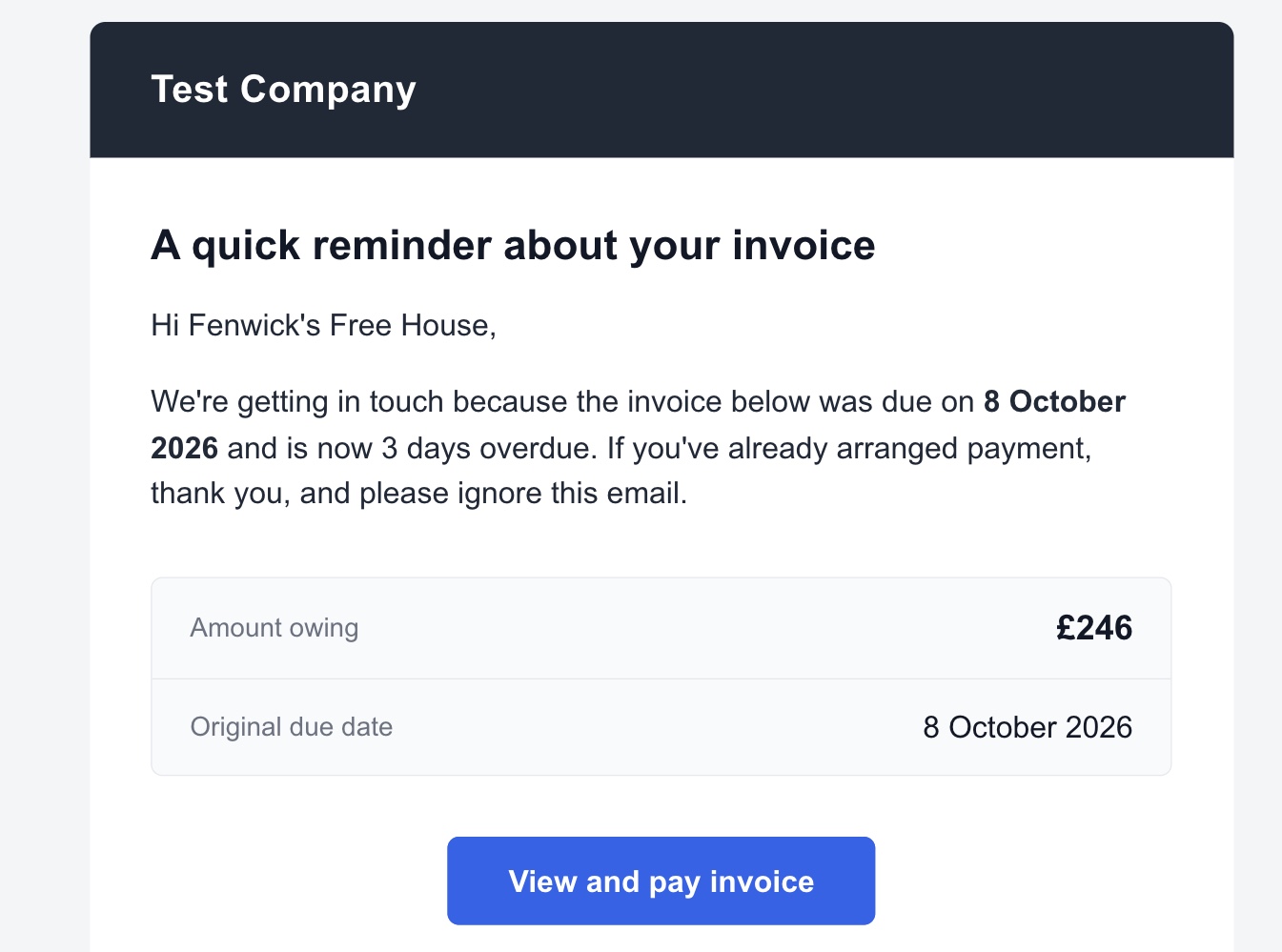
You may want a designed HTML email for your reminder, rather than plain text. With the right prompt, an AI model will write the HTML for you, including dynamic fields that change in each email, such as the buyer's name, the amount owing and the invoice link.
Use this prompt:
You can add more detail, such as your brand style ("our brand is blue") or the tone you'd like. The AI model returns HTML code, which you'll use in step 10.
10. Fifth node: send email (Gmail)
The final node sends the late payment reminder. This example uses Gmail, but the process is similar for other services, such as Outlook.
Add a new node, search for Gmail and select Send a message. Then set:
- Credential to connect with: connect your Gmail account
- Resource: Message
- Operation: Send
- To: enter the expression below. It works if the node from step 7 is named "Get Contact"; otherwise, change it to match. For testing, hard-code your own email address first.
- Subject: write a clear subject, such as "Late payment with Test Company".
- Email type: HTML if you're using the design from step 9, otherwise Text.
- Message: paste in your HTML (or write your text email), then drag the matching input data from the right-hand side into each dynamic field, such as the buyer's company name, invoice amount and invoice URL.
Click Execute step to check it's working. As above, test with your own email address before going live.
The finished result
Things to note
- You'll probably hit some errors. This is normal and happens to everyone.
- When it happens, double-check the instructions above. If it still doesn't work, take a screenshot and paste it into an AI model. It should point you to the fix, which is usually something simple.
Automate payment reminders with Orderlinks
Building your own workflow is a great way to learn n8n. But if you'd rather not build and maintain one, Orderlinks automates payment reminders out of the box, and fixes Xero's limitations along the way:
- Automated reminders and statements: buyers with overdue invoices are reminded automatically, with no nodes, credentials or expressions to set up.
- Sent from your own email domain: connect your domain and reminders come from your business, which buyers recognise and trust.
- A Payment Portal for every buyer: reminders link to a portal showing all their invoices, where they can pay several at once. Each payment is matched to the right invoice in your accounting system.
- Direct Debit campaigns: the best reminder is one you never need to send. Orderlinks helps you get buyers onto Direct Debit with automated sign-up emails and incentives, so invoices are paid on the due date.
Frequently asked questions
Can Xero send automatic invoice reminders?
Yes. Xero can send reminder emails before and after an invoice's due date, but the same message goes to every customer, it's email only, it's sent from a Xero address, and you can have up to five reminders in a sequence.
How do I automate invoice reminders from Xero with n8n?
Create a Xero developer app, connect it to n8n with an OAuth2 credential, then build a scheduled workflow: get late invoices from the Xero API, split them out, get each contact's email and the online invoice link, and send a reminder email through Gmail or Outlook.
Can I send invoice reminders from my own email address?
Yes. With n8n you can send reminders from your own Gmail or Outlook account. With Orderlinks, you can connect your email domain so automated reminders come from your business.
Is there a way to automate reminders without building a workflow?
Yes. Orderlinks sends automated payment reminders that link buyers to a Payment Portal to pay, and helps you move buyers onto Direct Debit so reminders aren't needed.
Automate your payment reminders
Reminders from your own email, a Payment Portal for every buyer, and Direct Debit for 0.50% + 30p.
Get started